- SimCleaner
- Guides
- Runtimes
How to delete simulator runtimes that won't go away
Delete them in Xcode › Settings › Components or with xcrun simctl runtime delete. They are protected by System Integrity Protection, so rm can't remove them, and the bug that brought some back after a restart is fixed in Xcode 27.2 beta 2.
xcrun simctl runtime delete. Runtimes live in storage protected by System Integrity Protection, so rm and sudo can't remove them. If one came back after a restart, that was a bug in Xcode 27.0, fixed in Xcode 27.2 beta 2.What a runtime is
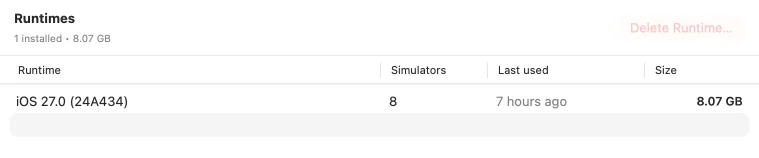
A runtime is the operating system image simulators boot from: one per iOS, watchOS, tvOS or visionOS version. Every simulator on that version shares it, so deleting simulators frees none of its space. On macOS 27 with Xcode 27, the iOS 27.0 runtime takes 7.5 GB; developers report iOS 18.5 at about 9 GB (Apple Developer Forums).
Since Xcode 14, runtimes are kept in "a system-managed storage location protected by System Integrity Protection" (Xcode 14 release notes). On macOS 27 the image is in /System/Library/AssetsV2/com_apple_MobileAsset_iOSSimulatorRuntime and is mounted read-only under /Library/Developer/CoreSimulator/Volumes.
Delete one in Xcode
- Open Xcode › Settings and choose Components.
- Find the runtime, click the info button next to it and choose Delete. Xcode shows how much storage you'll recover (Apple documentation).
Delete one in Terminal
List what's installed, with sizes:
xcrun simctl runtime list -vCheck what a delete would do, then run it. Replace RUNTIME_ID with the long identifier from the list:
xcrun simctl runtime delete RUNTIME_ID --dry-run
xcrun simctl runtime delete RUNTIME_ID
Running simulators that use the runtime are shut down and the disk image is unmounted first. A few options delete several at once:
| Option | Deletes |
|---|---|
--notUsedSinceDays 30 | Runtimes no simulator has used in 30 days |
--unusable | Runtimes marked as unusable |
--outdated | Older builds of a runtime that has a newer build with the same identifier, not older OS versions |
all | Every runtime image |
--dry-run | Nothing; prints what would go |
To get a runtime back, use Get in the same Components pane or xcodebuild -downloadPlatform iOS.
If it comes back after a restart
Xcode 27.0 has a known issue: "Some simulator runtimes are not completely deleted when removed, re-appearing after a reboot" (Xcode 27 release notes). Apple fixed it in Xcode 27.2 beta 2, and a developer on the forums confirmed that Delete there removed runtimes that had kept coming back (thread).
The same beta has a new known issue: a runtime you delete and reinstall can show as unavailable. Apple's workaround is to restart CoreSimulator:
killall -9 com.apple.CoreSimulator.CoreSimulatorServiceWhat not to do
- Don't eject or unmount the runtime volume with
diskutilorumount. Xcode then reports a duplicate runtime until you restart the Mac (release notes). - Don't
rmfolders inCoreSimulator/Volumes. They are mount points; the runtime comes back (forum thread). - Don't turn off System Integrity Protection to delete from
AssetsV2. Apple's developer support calls it unsupported, because it changes "data structures behind the back of running systems" (thread).
When the space doesn't show up
Deleted runtime data can sit in a local Time Machine snapshot for a while. One developer saw the space return only after the second backup. The free space guide explains how to check.
Simulator caches
CoreSimulator also builds a dyld shared cache per runtime and macOS version in /Library/Developer/CoreSimulator/Caches/dyld, about 3 GB each. The iOS 27.0 runtime ships with a prebuilt cache, so on a fresh macOS 27 setup the folder can be empty. Caches made for an older macOS build aren't used after an update. To clear them all:
xcrun simctl runtime dyld_shared_cache remove --allCoreSimulator rebuilds the one it needs the next time a simulator starts, which can take a few minutes.
With SimCleaner
The Runtimes page lists each runtime with its size and how many simulators depend on it; SimCleaner Pro also shows when each one was last used. Pro deletes runtimes through CoreSimulator and then checks that CoreSimulator no longer lists them, so a runtime that only pretends to be gone is reported instead of counted as freed. The App Store edition can't delete them, because the sandbox keeps it away from CoreSimulator's disk images. It lists them and tells you where to delete them.
Questions
Does deleting a runtime delete my simulators?
No. Simulators that used it become unavailable until you download the runtime again. xcrun simctl delete unavailable removes them if you don't plan to.
Can I keep the simulators and still free the space?
No. A simulator can't start without its runtime. Erasing simulators frees their data, not the runtime.
Why does Xcode download a runtime again on its own?
Xcode downloads the runtime that matches its SDK when you build for a simulator that needs it, or when an agent or script asks for one.